

Have you ever clicked on a search result only to find the page won’t load? Or maybe you need to see what a website looked like before it was updated? This is where Google’s cached pages become incredibly useful.
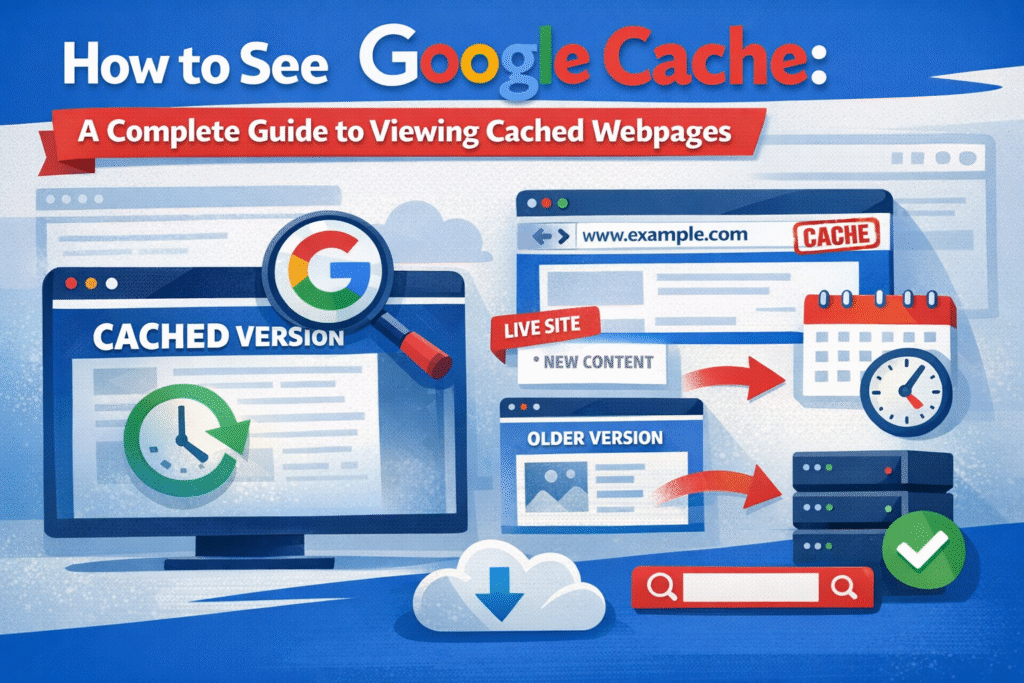
Google cache is essentially a snapshot of a webpage that Google saved when it last crawled the site. Think of it as a time machine for the internet—it lets you access websites even when they’re down, slow, or have been modified. Whether you’re troubleshooting broken links, conducting research, or verifying what content existed on a page before changes were made, knowing how to access cached versions can save you significant time and frustration.
In this guide, I’ll walk you through everything you need to know about viewing Google cached pages, including multiple methods that work in 2026, practical applications, and what to do when cached versions aren’t available.
What Are Google Cached Pages?
When Google crawls the web to index content for search results, it takes snapshots of pages and stores them on its own servers. These stored versions are what we call cached pages.
Every time Googlebot visits a webpage, it may create a new cached copy. The frequency of these visits depends on several factors: how often the site updates, its authority, and how important Google considers the content. High-traffic news sites might get cached multiple times per day, while smaller blogs might only be cached weekly or monthly.
The cached version shows you exactly what Google saw during its last visit. This includes the text content, images (though sometimes these appear broken), and the basic layout. However, some dynamic elements like interactive features or content loaded through JavaScript may not appear exactly as they do on the live site.

Why You’d Want to View Cached Content
Understanding when to retrieve cached content can dramatically improve your productivity and problem-solving abilities online. Here are the most practical scenarios:
When Websites Are Unavailable
If a server crashes or a site experiences downtime, the cached version lets you access the information you need immediately rather than waiting for the site to come back online.
Checking Historical Content
Need to verify what a product description said last month? Want to see a competitor’s old pricing? Cached pages serve as proof of what existed before updates were made.
Research and Fact-Checking
Journalists, researchers, and legal professionals often need to document what was published at specific times. The cached version provides a Google-stamped record of content.
Bypassing Paywalls (Limited Use)
Sometimes cached versions allow you to view content that’s now behind a paywall, though this doesn’t work for all sites and shouldn’t replace legitimate subscriptions.
Troubleshooting SEO Issues
If your rankings dropped after a site update, comparing the current page to the cached version helps identify what changed and potentially what caused the ranking shift.
Accessing Deleted Content
When pages get removed but you need the information, the cache might still have it—at least until Google crawls the site again and updates its records.
| Situation | What the Cached Page Shows |
| Website is down | A previously saved version of the page |
| Content was updated | The older version before changes |
| Page was deleted | Information that existed before removal |
| SEO ranking dropped | What Google last indexed |
| Fact-checking needed | Time-stamped proof of published content |
| Paywall added | How Google initially accessed the page |
Multiple Ways to Access Google Cache
Google has made several changes to how cache access works, so it’s important to know all the available methods. Some that worked in the past have been retired, while new approaches have emerged.
Method 1: Using the Cache Operator in Google Search
The most straightforward approach involves using a special search operator directly in Google’s search box.
Step-by-step process:
- Open Google.com in your browser
- Type cache: followed immediately by the full URL (no space)
- Press Enter
Example: cache:example.com/article-name
This command tells Google to show you its cached version of that specific page. If Google has a cached copy, it will display it with a banner at the top showing when the snapshot was taken.
As of recent updates, this method may not work consistently across all regions or for all pages. Google has been gradually phasing out direct cache access through some channels.
Method 2: The Three-Dot Menu in Search Results
While Google removed the visible “Cached” link from standard search results in early 2024, there’s still a way to access it through the menu.
How to do it:
- Perform a Google search for the page you want
- Look for the three vertical dots next to the search result
- Click the dots to open the menu
- Select “Cached” if available
This method’s availability varies. Google continues to adjust its interface, and cached links may appear or disappear depending on your location and the type of search.
Method 3: Google Cache Checker Tools
Several free online tools have emerged specifically to help users access cached versions more reliably. These tools essentially automate the cache lookup process.
Popular options include:
- Cached View (cachedview.com)
- Small SEO Tools Cache Checker
- Google Cache Browser extension
To use these tools, you simply paste the URL you want to check, and the tool queries Google’s cache on your behalf. This often works even when direct methods fail.
Method 4: Google Search Console (For Site Owners)
If you own or manage a website, Google Search Console provides insights into when pages were last cached.
Navigate to the URL Inspection tool, enter the page URL, and you’ll see crawl information including the last cached date. While this doesn’t give you a direct view of the cached page, it confirms whether Google has a current snapshot.
Method 5: Browser Extensions
Browser extensions designed for SEO professionals and researchers often include quick cache lookup features. Extensions like “SEO Minion” or “Detailed SEO Extension” add buttons to your browser that let you view cached pages with a single click.
Common Issues When Trying to View Cached Pages
Even when you know the methods, you might encounter problems. Here’s how to address the most frequent issues:
“This page is not cached” Message
Some pages simply aren’t in Google’s cache. This happens with very new pages Google hasn’t crawled yet, pages blocked by robots.txt, or pages marked with “noarchive” tags that specifically prevent caching.
Broken Images in Cached Versions
Images often appear broken in cached pages because Google stores the HTML but may not store all image files. The cached version tries to load images from the original server, which fails if the site is down—the very reason you might be checking the cache.
Outdated Cache Dates
If the cached version is months old, it might not reflect recent content. Low-priority pages on smaller sites may only be recached infrequently. You can request reindexing through Google Search Console if you own the site.
Dynamic Content Missing
Content loaded through JavaScript or AJAX often doesn’t appear in cached versions because Google’s snapshot captures the initial HTML, not everything that loads afterward.
The SEO Value of Understanding Cached Pages
For anyone managing a website, cached pages provide critical insights into how Google sees your content.
Indexing Verification
The cached version shows exactly what Google indexed. If important content is missing from the cache, it might not be factored into your rankings. This commonly happens with JavaScript-heavy sites where critical content loads after the initial page render.
Identifying Crawl Issues
When the cached date is very old compared to when you published updates, it signals that Google isn’t crawling your site frequently. This could indicate technical problems, low site authority, or crawl budget issues.
Content Comparison After Updates
Ranking drops after site redesigns are common. Comparing the old cached version to the new live version helps identify what content was lost or how structure changed in ways that might have hurt SEO.
Competitor Analysis
Viewing cached versions of competitor pages lets you see their content strategies and how frequently they update, which helps inform your own content planning.
Alternatives When Google Cache Isn’t Available
Google cache isn’t the only way to access historical versions of webpages. These alternatives often work when Google’s cache doesn’t:
| Tool | Best For | Limitations |
| Wayback Machine | Historical snapshots going back years | Not all pages are archived; some sites block it |
| Archive.today | Quick snapshots; bypasses some blocks | Smaller archive; less comprehensive |
| Bing Cache | Alternative search engine cache | Smaller index than Google |
| Coral Cache | Distributed web cache | Less reliable; not widely maintained |
The Wayback Machine (web.archive.org) is particularly powerful because it stores multiple snapshots over time, letting you see how a page evolved. Simply enter the URL and browse through available captures by date.

Practical Tips for Working with Cached Content
To get the most value from cached pages, keep these strategies in mind:
Check the Cache Date First
Always look at when the snapshot was taken. A cache from six months ago won’t help if you need current information.
Save Important Cached Pages
If you find a cached version with critical information, take screenshots or save the page as a PDF. Caches eventually get overwritten, and you might not be able to access that version again.
Understand Legal and Ethical Considerations
Just because content is cached doesn’t mean you can republish it as your own. Cached pages show information for reference, not for content theft.
Use Cache to Diagnose Speed Issues
If the cached version loads quickly but the live site is slow, the problem is with the current server or site code, not Google’s crawling.
Combine Multiple Tools
Don’t rely on Google cache alone. Check the Wayback Machine and other archives for a more complete picture of a page’s history.
What Google’s Cache Changes Mean for Users
Google has been gradually reducing prominent cache access, which has created uncertainty about the feature’s future. While cached pages still exist in Google’s infrastructure, the company seems to be deprioritizing public access to them.
This shift likely reflects improved internet reliability—sites go down less frequently than in the past—and Google’s focus on showing fresh, current results rather than old snapshots. However, for researchers, SEO professionals, and anyone who relies on historical web data, these changes make alternative archiving tools more important than ever.
The key takeaway: Don’t assume Google cache will always be available in its current form. Develop familiarity with multiple archiving solutions now.
Making the Most of Cached Versions
Knowing how to view cached websites is more than a technical trick—it’s a practical skill that solves real problems. Whether you’re trying to access a down site, verify what content existed before changes, or analyze how Google indexes your pages, cached versions provide valuable insights you can’t get any other way.
The methods I’ve outlined give you multiple paths to cached content, ensuring you can usually find what you need even as Google continues adjusting its interfaces. Combined with alternative archives like the Wayback Machine, you’ll have robust tools for accessing historical web content.
Remember that cached pages are snapshots, not live copies. They show what existed at a specific moment but may not include all dynamic elements or the most current updates. Use them as one tool among many in your research or troubleshooting process, and always verify critical information when possible.
FAQs
1. How do I find the cached version of a specific page?
Type cache: followed by the full URL directly into Google search, or use a Google cache checker tool online. You can also try clicking the three-dot menu next to search results to see if a cached option appears.
2. Why can’t I see the cached link on Google anymore?
Google removed the visible cached link from most search results in early 2024. The cache still exists, but you need to use the cache: operator, third-party tools, or browser extensions to access it more reliably.
3. How often does Google update cached pages?
It varies dramatically by site. High-authority sites with frequent updates may be cached multiple times daily, while smaller sites might only be recached every few weeks or months. The cache date shown on the cached page tells you when that specific snapshot was taken.
4. Can I view cached pages if the website is completely deleted?
Possibly, but only until Google recrawls and discovers the page is gone. After that, the cache will be removed. For permanently deleted content, the Wayback Machine is usually a better option since it maintains historical archives indefinitely.
5. Do all webpages have a Google cached version?
No. Pages with “noarchive” meta tags, pages blocked by robots.txt, very new pages not yet crawled, and certain types of dynamic content may not have cached versions available.
6. How can I prevent my pages from being cached by Google?
Add a meta tag to your page header: <meta name=”robots” content=”noarchive”>. This tells Google not to save or display cached versions of that page. This is useful for pages with frequently changing content or sensitive information.