


Overview
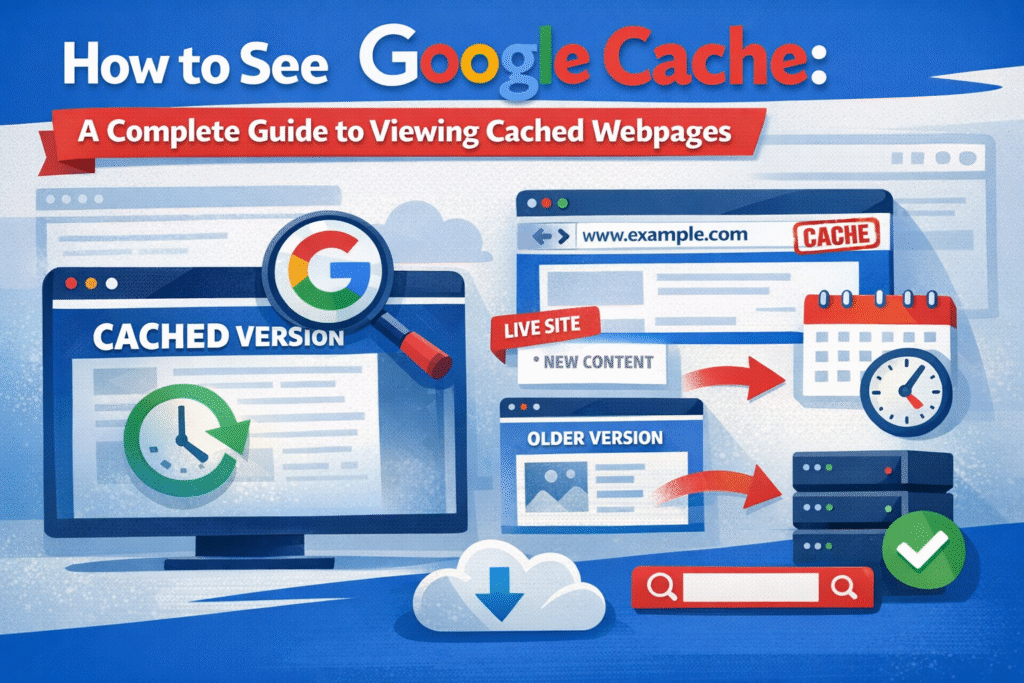
Google Cached Pages are saved copies of webpages that Google stores when it crawls a website. These cached versions help users view content when a page is unavailable, updated, or deleted. Although Google removed the visible “Cached” link from search results, you can still access cached pages using the cache: operator, Wayback Machine, and other archive tools. This guide explains how to view Google cached pages, recover old content, and use the best Google Cache alternatives in 2026.
Introduction
Ever clicked a search result only to find the page is unavailable? Or wanted to see how a website looked before it was updated? That’s where Google Cache comes in.
Google Cache stores a snapshot of a webpage from the last time Google crawled it. This allows you to view older versions of pages, access content when a site is down, and verify information that may have changed. In this guide, you’ll learn how to view Google cached pages, the different methods that work in 2026, and what to do if a cached version isn’t available.
Is Google Cache Still Available in 2026?
Yes — Google cache still exists in 2026. But it works differently than it did before 2024, and that is why so many people think it is gone.
Here is the full picture.
What Google Changed in Early 2024
In early 2024, Google quietly removed the “Cached” link that used to appear directly under every search result. If you remember clicking that small link to see an older version of a page — that link is gone from the standard search results interface.
This confused a lot of users. Many assumed Google had shut down caching entirely. It has not.
What Google removed was the shortcut button — not the cache itself.
What Still Works Right Now
Google’s servers are still storing snapshots of web pages. The cache is alive. You just need a different way to reach it:
- The cache: operator still works — type cache: followed by any URL directly into Google Search
- Cached copies are still stored on Google’s servers and updated regularly
- Third-party tools can still pull Google’s cached version of any page
What Are Google Cached Pages?
Google Cache is a saved snapshot of a webpage that Google stores when it crawls and indexes the site. These cached copies let you see what a page looked like during Google’s last visit.
Google updates cached pages regularly, with frequently updated websites being crawled more often than others. While cached versions usually include the page’s content and layout, some interactive features or dynamic elements may not display exactly as they do on the live website.

Why You’d Want to View Cached Content
Understanding when to retrieve cached content can dramatically improve your productivity and problem-solving abilities online. Here are the most practical scenarios:
When Websites Are Unavailable
If a server crashes or a site experiences downtime, the cached version lets you access the information you need immediately rather than waiting for the site to come back online.
Checking Historical Content
Need to verify what a product description said last month? Want to see a competitor’s old pricing? Cached pages serve as proof of what existed before updates were made.
Research and Fact-Checking
Journalists, researchers, and legal professionals often need to document what was published at specific times. The cached version provides a Google-stamped record of content.
Bypassing Paywalls (Limited Use)
Sometimes cached versions allow you to view content that’s now behind a paywall, though this doesn’t work for all sites and shouldn’t replace legitimate subscriptions.
Troubleshooting SEO Issues
Comparing cached pages with live pages can uncover technical problems affecting rankings. A strong understanding of technical SEO can help identify these issues.
Accessing Deleted Content
When pages get removed but you need the information, the cache might still have it—at least until Google crawls the site again and updates its records.
| Situation | What the Cached Page Shows |
| Website is down | A previously saved version of the page |
| Content was updated | The older version before changes |
| Page was deleted | Information that existed before removal |
| SEO ranking dropped | What Google last indexed |
| Fact-checking needed | Time-stamped proof of published content |
| Paywall added | How Google initially accessed the page |
MHow to View Google Cached Pages — 5 Methods That Work in 2026
Here are all the working methods ranked from fastest to most reliable:
Method 1: cache: Operator (Fastest Method)
Works on: Desktop and Mobile browsers
Steps:
- Open Google.com
- In the search box, type cache: then paste the full URL with no space
- Press Enter
- Google shows the cached version with a date stamp at the top
Example: cache:https://example.com/your-page
Result: You will see a gray banner that says “This is Google’s cache of [URL]. The page is a snapshot of the page as it appeared on [date].”
Method 2: Three-Dot Menu in Search Results
Works on: Desktop only (limited availability)
This method does not always appear, but it is worth trying before moving to other options.
Steps:
- Search for the page normally in Google
- Find the result in the list
- Click the three vertical dots ⋮ next to the result URL
- If the option appears, click “Cached”
Important: This does not show up for every result. Google controls when it appears based on your location and their current interface settings. If you do not see it, move to Method 3
Method 3: Free Cache Checker Tools — Most Reliable Backup
Works on: Desktop and Mobile — no Google account needed
When the first two methods fail, these tools pull cached versions independently and are often more consistent.
| Tool | Website | Best For |
|---|---|---|
| CachedView | cachedview.nl | Quick cache lookup |
| Archive.today | archive.ph | Instant snapshots |
| Wayback Machine | web.archive.org | Historical versions |
| Google Cache Checker | Small SEO Tools | Bulk URL checking |
Steps:
- Open any tool from the list above
- Paste the full URL of the page you want
- Click Search or Submit
- The tool fetches and displays the cached or archived version
Best pick: If you are unsure which to use, start with Archive.today for recent snapshots and Wayback Machine for anything older than a few weeks.
Method 4: Bing Cache — The Underrated Alternative
Works on: Desktop and Mobile
Most people forget that Bing also caches web pages — and for some pages, Bing’s copy is actually more recent than Google’s.
Steps:
- Go to Bing.com
- Search for the page you want
- Hover over the result
- Click the small arrow or dropdown next to the URL
- Select “Cached page”
Or use the direct operator:
cache:https://example.com
Type that directly into Bing’s search bar — same format as Google.
When to use this: If Google says “This page is not cached,” Bing is your fastest next step before going to archive tools.
Method 5: Browser Extensions — Best for Regular Users
Works on: Chrome, Edge, Firefox
If you check cached pages frequently, an extension saves you time every single day. One click and you are there — no typing operators, no opening separate tools.
Top extensions to install:
- Web Cache Viewer — one-click access to Google and Wayback Machine cache for any page you are currently on
- SEO Minion — adds a “View Cache” button; great if you are already using it for SEO tasks
- Detailed SEO Extension — shows the cache date and lets you open it with one click
How to install:
- Open the Chrome Web Store (chrome.google.com/webstore)
- Search for “Web Cache Viewer“ or “SEO Minion”
- Click “Add to Chrome”
- Go to any webpage and click the extension icon in your toolbar
Quick Comparison: Which Method Should You Use?
| Method | Speed | Reliability | Works Without Google |
|---|---|---|---|
| cache: operator | Fast | Good | No |
| Three-dot menu | Fast | Inconsistent | No |
| Cache tools | Medium | Very Good | Yes |
| Bing Cache | Medium | Good | Yes |
| Extensions | Fast | Good | No |
Common Issues When Trying to View Cached Pages
Even when you know the methods, you might encounter problems. Here’s how to address the most frequent issues:
“This page is not cached” Message
Some pages simply aren’t in Google’s cache. This happens with very new pages Google hasn’t crawled yet, pages blocked by robots.txt, or pages marked with noarchive tags that specifically prevent caching. A complete free SEO audit can help identify indexing, technical, and optimization problems affecting your website.
Broken Images in Cached Versions
Images often appear broken in cached pages because Google stores the HTML but may not store all image files. The cached version tries to load images from the original server, which fails if the site is down—the very reason you might be checking the cache.
Outdated Cache Dates
If the cached version is months old, it might not reflect recent content. Low-priority pages on smaller sites may only be recached infrequently. You can request reindexing through Google Search Console if you own the site.
Dynamic Content Missing
Content loaded through JavaScript or AJAX often doesn’t appear in cached versions because Google’s snapshot captures the initial HTML, not everything that loads afterward.
Alternatives When Google Cache Isn’t Available
Google cache isn’t the only way to access historical versions of webpages. These alternatives often work when Google’s cache doesn’t:
| Tool | Best For | Limitations |
| Wayback Machine | Historical snapshots going back years | Not all pages are archived; some sites block it |
| Archive.today | Quick snapshots; bypasses some blocks | Smaller archive; less comprehensive |
| Bing Cache | Alternative search engine cache | Smaller index than Google |
| Coral Cache | Distributed web cache | Less reliable; not widely maintained |
The Wayback Machine (web.archive.org) is particularly powerful because it stores multiple snapshots over time, letting you see how a page evolved. Simply enter the URL and browse through available captures by date.

Practical Tips for Working with Cached Content
To get the most value from cached pages, keep these strategies in mind:
Check the Cache Date First
Always look at when the snapshot was taken. A cache from six months ago won’t help if you need current information.
Save Important Cached Pages
If you find a cached version with critical information, take screenshots or save the page as a PDF. Caches eventually get overwritten, and you might not be able to access that version again.
Understand Legal and Ethical Considerations
Just because content is cached doesn’t mean you can republish it as your own. Cached pages show information for reference, not for content theft.
Use Cache to Diagnose Speed Issues
If the cached version loads quickly but the live site is slow, the problem is with the current server or site code, not Google’s crawling.
Combine Multiple Tools
Don’t rely on Google cache alone. Check the Wayback Machine and other archives for a more complete picture of a page’s history.
What Google’s Cache Changes Mean for Users
Google has been gradually reducing prominent cache access, which has created uncertainty about the feature’s future. While cached pages still exist in Google’s infrastructure, the company seems to be deprioritizing public access to them.
This shift likely reflects improved internet reliability—sites go down less frequently than in the past—and Google’s focus on showing fresh, current results rather than old snapshots. However, for researchers, SEO professionals, and anyone who relies on historical web data, these changes make alternative archiving tools more important than ever.
As AI search evolves, understanding Google SGE and AI-powered search becomes increasingly important.
Making the Most of Cached Versions
Knowing how to view cached websites is more than a technical trick—it’s a practical skill that solves real problems. Whether you’re trying to access a down site, verify what content existed before changes, or analyze how Google indexes your pages, cached versions provide valuable insights you can’t get any other way.
The methods I’ve outlined give you multiple paths to cached content, ensuring you can usually find what you need even as Google continues adjusting its interfaces. Combined with alternative archives like the Wayback Machine, you’ll have robust tools for accessing historical web content.
Remember that cached pages are snapshots, not live copies. They show what existed at a specific moment but may not include all dynamic elements or the most current updates. Use them as one tool among many in your research or troubleshooting process, and always verify critical information when possible.
Google Cache vs. Wayback Machine — Which One Should You Use?
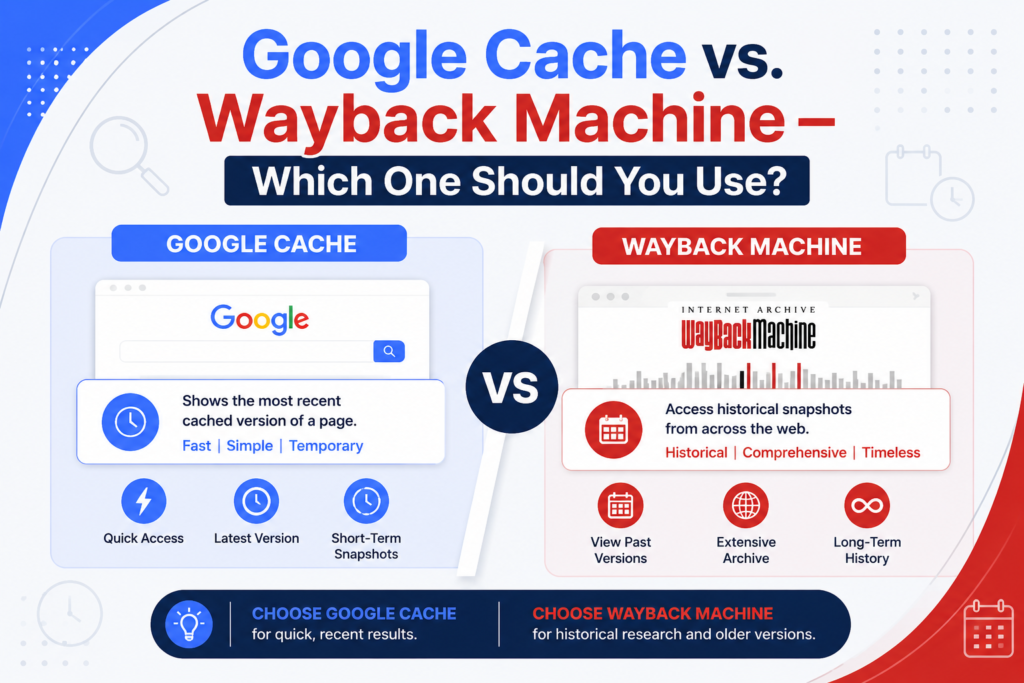
A lot of people treat these two as the same thing. They are not. Both let you view old versions of web pages, but they work very differently and serve completely different needs.
Here is the clearest way to understand the difference.
Google Cache
Google takes a single snapshot of a page every time its bot crawls it. That latest snapshot is what you see when you use the cache: operator. There is no history — just the most recent saved copy.
- Shows the most recent snapshot Google saved
- Usually one version available at a time
- Updates whenever Google recrawls the page
- Best for: A site that went down today and you need the content right now
- How to access: Type cache: before the URL in Google Search
Wayback Machine (web.archive.org)
The Wayback Machine is a non-profit digital archive that has been saving snapshots of the internet since 1996. It does not just keep one version — it keeps every version it has ever captured, all organized by date.
- Shows multiple snapshots going back years or even decades
- You can browse by date and see exactly how a page looked at any point in time
- Independent of Google — works even for pages Google never cached
- Best for: Researching what a page said last month, last year, or ten years ago
- How to access: Go to web.archive.org, paste any URL, and pick a date from the calendar
FAQs
1. How do I view a Google cached page in 2026?
Type cache: followed by the full URL directly into Google Search with no space between them. Example: cache:https://example.com. Press Enter and Google will show you the saved version of that page with the date it was captured.
2. Why did Google remove cached pages?
Google removed the visible “Cached” link from search results in early 2024. The company explained that the feature was originally created to help users access pages when internet connections were unreliable — a problem that is now much less common. The cache itself was not removed, just the easy-access link in the UI.
3. What happened to the Cached link in Google search results?
Google removed the Cached link from search results in early 2024. It used to appear as a small link under each search result. Now you need to use the cache: operator, third-party tools, or browser extensions to access cached versions.
4. How do I find a cached version of a website that is down?
If a website is down, type cache: followed by the full URL into Google Search. If Google has a saved copy, it will load from Google’s servers — not the live site — so the website being down does not affect it. If Google cache is not available, try the Wayback Machine at web.archive.org.
5. Why are images broken in the cached version of a page?
When you view a cached page, Google serves the saved HTML from its servers — but images are still loaded from the original website. If the website is down or the images have been moved, they will appear broken. The text content usually remains readable even when images fail.
6. Can I stop Google from caching my website?
Yes. Add this meta tag inside the <head> section of your page: <meta name=”robots” content=”noarchive”> This tells Google not to save or display a cached version of that page. You can also use the X-Robots-Tag: noarchive HTTP header for the same effect.