


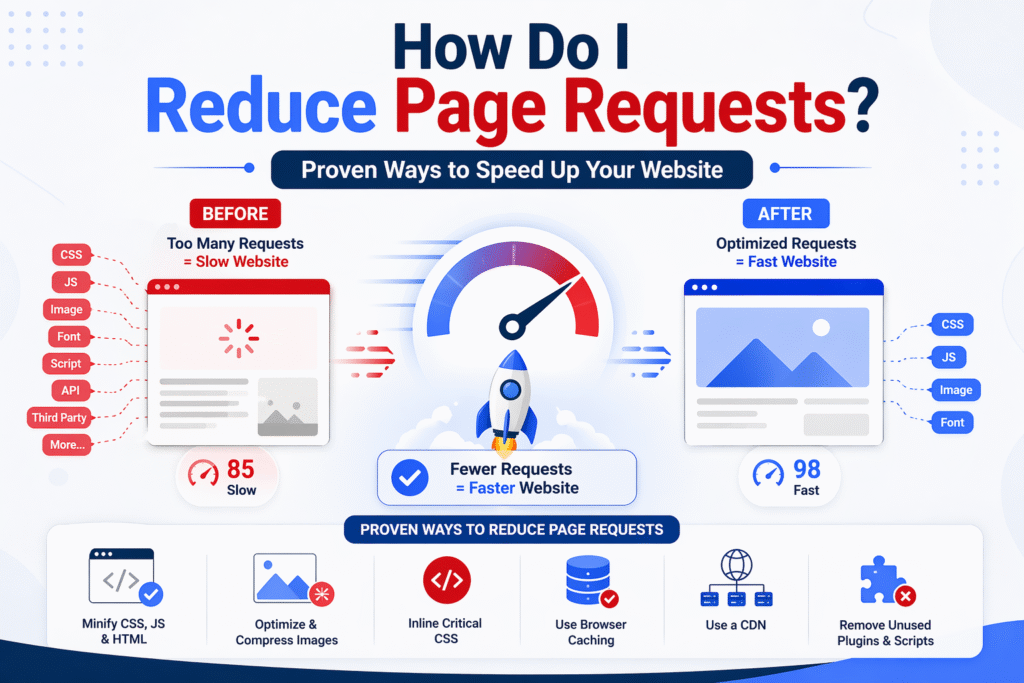
Are you frustrated with a slow website? You’re not alone. One of the biggest — and most overlooked — reasons websites load slowly is too many page requests. The good news? You can fix this today, even if you’re not a developer.
In this guide, I’ll walk you through exactly how to reduce page requests, why they matter for your SEO rankings, and the 10 best methods that actually work in 2026.
Let’s dive in.
What Are Page Requests and Why Do They Slow Your Website?
Every time someone visits your website, their browser sends a request to your server for each file it needs to load the page. This includes:
- CSS stylesheets
- JavaScript files
- Images and videos
- Fonts
- Third-party scripts (like analytics, ads, chatbots)
Each one of these is a separate page request. If your homepage needs 80 files to load, that’s 80 individual requests your browser has to complete — one by one (or in limited batches).
The more requests your page makes, the longer it takes to load. It’s that simple.
How to Check How Many Page Requests Your Site Makes
Before you fix anything, you need to know where you stand. Here’s how to check your current page requests in under 60 seconds:
Using Google Chrome DevTools:
- Open your website in Chrome
- Right-click anywhere → click Inspect
- Go to the Network tab
- Reload the page
- Look at the bottom bar — you’ll see something like “74 requests”
Using GTmetrix:
- Go to gtmetrix.com
- Enter your URL and run a test
- Check the Page Details section for total requests
Now you have your baseline. Let’s bring that number down.

Why Too Many Page Requests Kill Your Website Speed
Page requests are one of the #1 cause of slow websites. But the impact goes way beyond just annoying your visitors.
Here’s what’s actually at stake:
Real Impact on SEO Rankings and User Experience
Google cares about speed. Core Web Vitals — Google’s official ranking signals — directly measure how fast your pages load and respond. A slow site from excessive page requests can:
- Drop your search rankings — Google penalizes slow pages, especially on mobile
- Increase bounce rate — 53% of mobile users leave a site that takes longer than 3 seconds to load
- Kill conversions — A 1-second delay in load time can reduce conversions by up to 7%
- Hurt your crawl budget — Googlebot spends less time crawling bloated sites
And in 2026, with AI Overviews and Answer Engine Optimization (AEO) becoming the new frontier, fast-loading, well-structured pages are far more likely to be cited in AI chatbot answers like ChatGPT, Gemini, and Perplexity.
A slow page simply doesn’t make the cut.
How Do I Reduce Page Requests? 10 Proven Methods
Here are the 10 most effective ways to reduce page requests on your website — starting with the easiest wins.
1. Combine Your CSS and JavaScript Files
One of the fastest wins you can get is combining multiple CSS files into one and doing the same for JavaScript files.
Instead of loading 6 separate CSS files, you load 1. That’s 5 fewer requests instantly.
How to do it:
- WordPress users: Use a plugin like WP Rocket, Autoptimize, or LiteSpeed Cache — they combine files automatically
- Manual method: Copy your CSS files into one master stylesheet and link only that one in your HTML
- Developers: Use build tools like Webpack or Vite to bundle JS files during the build process
2. Use CSS Sprites for Images
If your website uses lots of small icons, buttons, or decorative images, CSS sprites can dramatically cut down your image requests.
A CSS sprite combines multiple small images into one single image file. You then use CSS to display only the portion of the image you need in each place.
Instead of loading 20 separate icon images, you load one file and use CSS to show the right icon. That’s 19 fewer requests.
Tools to create CSS sprites:
- CSS Sprite Generator (spritegen.website-performance.org)
- Stitches (draeton.github.io/stitches)
- Most modern design tools and frameworks
3. Enable Lazy Loading for Images and Videos
By default, your browser tries to load every image on your page — even the ones at the very bottom that the user may never scroll to see. This creates unnecessary page requests on load.
Lazy loading tells the browser: “Only load this image when the user is about to see it.”
This is one of the easiest wins for reducing initial page requests.
How to enable lazy loading:
For images in HTML, it’s just one attribute:
<img src=”your-image.jpg” loading=”lazy” alt=”description”>
WordPress users: Most modern themes and plugins (like Jetpack or WP Rocket) enable lazy loading automatically. You can also enable it in WordPress core settings.
Google itself recommends lazy loading — it’s a Core Web Vitals best practice.
4. Minify HTML, CSS, and JavaScript
Minification removes all the unnecessary characters from your code — spaces, comments, line breaks — without changing how it works. Smaller files load faster and reduce the data transferred with each request.
While minification doesn’t reduce the number of requests, it reduces the weight of each request, which speeds up overall load time significantly.
Tools to minify your files:
- WordPress: WP Rocket, Autoptimize, or W3 Total Cache
- Online tools: CSS Minifier, JS Minifier, HTML Minifier
- Developers: Use PostCSS, Terser, or your build pipeline
A real-world example: Minifying a 150KB JavaScript file can bring it down to 60KB or less. Multiply that across 10 files and the difference is huge.
5. Remove Unnecessary Plugins and Scripts
This one is brutally honest — most websites are loaded with scripts they don’t need.
Every plugin you install (especially on WordPress) often adds its own CSS file, JavaScript file, or both — on every single page, even pages where that plugin isn’t being used.
Audit your plugins today:
- Open Chrome DevTools → Network tab
- Look at every JS and CSS file loading
- Ask yourself: “Do I actually need this?”
- Delete plugins you don’t use
- For plugins you do use, check if they have an option to load scripts only on specific pages
Common culprits that add unnecessary requests:
- Sliders and carousels you no longer use
- Old contact form plugins
- Duplicate SEO plugins
- Social sharing scripts loading on every page
One deleted plugin can sometimes remove 3–5 page requests instantly.
6. Use a Content Delivery Network (CDN)
A CDN (Content Delivery Network) is a network of servers spread around the world. When a user visits your site, the CDN serves files from the server closest to them — reducing load time and the number of slow, long-distance requests.
CDNs also cache static files (images, CSS, JS), so instead of every request hitting your origin server, most are served from cache — faster and with fewer bottlenecks.
Popular CDN options:
- Cloudflare (free plan available — most popular choice)
- BunnyCDN (affordable and fast)
- KeyCDN
- AWS CloudFront
For most small to medium websites, Cloudflare’s free plan is more than enough to see a significant speed improvement.
7. Enable Browser Caching to Reduce Repeated Requests
When a visitor comes to your website, their browser downloads all your files — CSS, JS, images, fonts. Browser caching tells the browser to save these files locally**, so the next time the same user visits, the browser doesn’t have to download everything again.
This doesn’t reduce requests on the first visit, but it dramatically speeds up every visit after that — and reduces server load overall.
How to enable browser caching:
Add this to your .htaccess file (Apache servers):
<IfModule mod_expires.c>
ExpiresActive On
ExpiresByType image/jpg “access plus 1 year”
ExpiresByType image/jpeg “access plus 1 year”
ExpiresByType image/png “access plus 1 year”
ExpiresByType text/css “access plus 1 month”
ExpiresByType application/javascript “access plus 1 month”
</IfModule>
WordPress users: WP Rocket, LiteSpeed Cache, or W3 Total Cache handle this automatically.
8. Reduce DNS Lookups on Your Website
Every time your page loads a resource from a third-party domain — like Google Fonts, Facebook widgets, external ad networks, or embedded YouTube videos — your browser has to perform a DNS lookup for that domain.
Each DNS lookup adds time and counts as an additional request chain.
How to reduce DNS lookups:
- Self-host your fonts instead of loading from Google Fonts
- Self-host your analytics if possible
- Remove embedded content you don’t truly need (Twitter feeds, Instagram widgets)
- Use DNS prefetching for resources you must keep:
<link rel=”dns-prefetch” href=”//fonts.googleapis.com”>
The goal is simple: keep as many resources on your own domain as possible.
9. Inline Small CSS and JavaScript
For very small CSS or JavaScript snippets — we’re talking under 1–2KB — it can actually be faster to inline them directly in your HTML rather than loading them as separate files.
Why? Because each external file = one HTTP request. If the file is tiny, the overhead of the request itself is larger than the file. Inlining eliminates the request entirely.
When to inline:
- Critical above-the-fold CSS (improves perceived load speed)
- Tiny scripts that are used only once
- Small icon SVGs used inline instead of as separate image files
When NOT to inline:
- Large files (inlining defeats the purpose of caching)
- Files used across many pages (external files get cached; inline doesn’t)
10. Use HTTP/2 to Handle Multiple Requests Faster
Even after reducing your requests, the ones that remain will load faster with HTTP/2.
Older HTTP/1.1 protocol loads files one at a time (or in very small batches). HTTP/2 allows multiplexing — loading multiple files simultaneously over a single connection. This means your remaining page requests fire off at the same time instead of queuing up.
How to enable HTTP/2:
- Most modern web hosts support HTTP/2 — check your hosting dashboard
- If you’re using Cloudflare, HTTP/2 is enabled by default
- Make sure your site has an SSL certificate (HTTPS) — HTTP/2 requires it
HTTP/2 alone won’t fix a bloated site, but combined with the other steps above, it’s a powerful final layer of optimization.

How Many Page Requests Is Too Many?
This is a question a lot of people ask — and the honest answer is: it depends on the type of page, but here are solid benchmarks:
| Page Type | Good | Acceptable | Too Many |
| Simple Blog Post | Under 30 | 30–50 | 50+ |
| Business Homepage | Under 50 | 50–80 | 80+ |
| eCommerce Product Page | Under 70 | 70–100 | 100+ |
| Landing Page | Under 25 | 25–40 | 40+ |
The goal isn’t perfection — it’s improvement. If you’re at 120 requests and you get it down to 60, that’s a massive win your users (and Google) will notice.
Tools to Monitor and Reduce Page Requests
You don’t need to guess. These free tools will show you exactly what’s happening:
Google PageSpeed Insights
- Free tool by Google
- Shows Core Web Vitals scores
- Gives specific recommendations
- URL: pagespeed.web.dev
GTmetrix
- Detailed waterfall chart of every request
- Shows load time, page size, and request count
- Free plan available at gtmetrix.com
Chrome DevTools
- Built into every Chrome browser
- Real-time network request analysis
- Press F12 → Network tab → reload the page
Run your site through all three — they each show slightly different data and give you a fuller picture.

Conclusion
So — how do you reduce page requests? You’ve now got the full answer.
The truth is, you don’t need to implement all 10 methods at once. Start with the easiest wins:
- Install a caching plugin (if you’re on WordPress)
- Enable lazy loading
- Delete unused plugins
These three steps alone can cut your page requests by 30–50% without touching a single line of code.
From there, work through the rest of the checklist systematically. Every request you eliminate is one less thing standing between your visitor and a fast, enjoyable experience on your site — and one more signal telling Google your site deserves to rank. Speed is not just a technical metric. It’s a user experience. And user experience is SEO.
FAQ’s
1. How do I reduce page requests in WordPress?
The easiest way is to use a performance plugin like WP Rocket or LiteSpeed Cache. These tools automatically combine CSS/JS files, enable lazy loading, and set up browser caching — reducing page requests without any manual coding.
2. What is a good number of HTTP requests for a website?
For most websites, under 50 HTTP requests is considered good. A simple blog post should aim for under 30. The lower the number, the faster your page will generally load.
3. Does reducing page requests improve SEO?
Yes, directly. Fewer page requests mean faster load times, which improves your Core Web Vitals scores — a confirmed Google ranking factor. Faster pages also reduce bounce rate and improve user engagement, both of which support better rankings.
4. How do I check page requests in Chrome?
Press F12 to open DevTools, click the Network tab, then reload the page. The total number of requests appears at the bottom of the screen. You can also see the size and load time of each individual file.
5. Why does my website have so many page requests?
Common causes include too many installed plugins, loading fonts from external services like Google Fonts, unoptimized images loaded individually instead of as sprites, and third-party scripts like analytics, ads, and social media widgets all loading separately.