

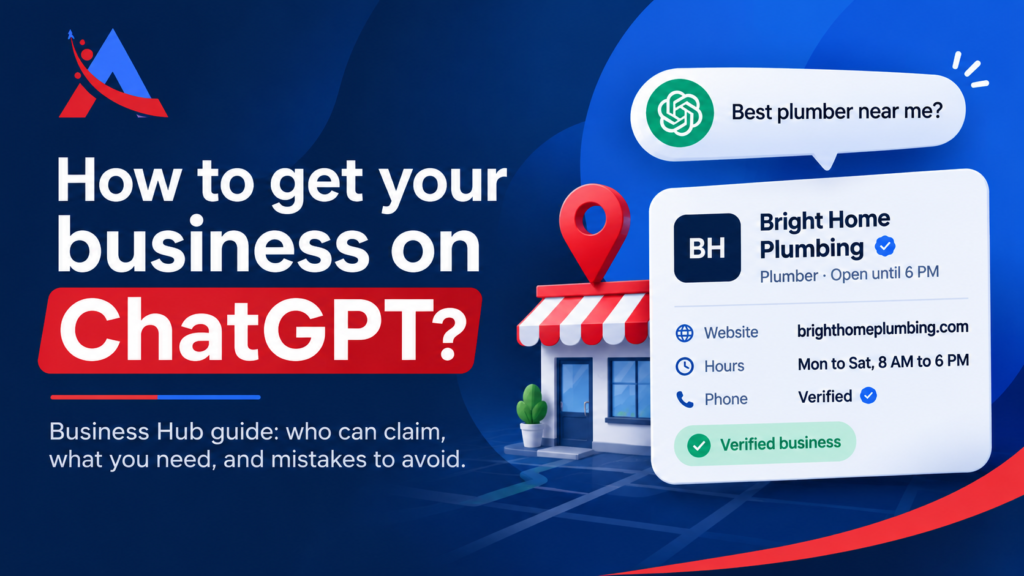
More and more people ask ChatGPT for local services, products and recommendations instead of typing into Google. If your business shows up there with an old website, wrong details, or not at all, you lose customers you never even knew about.
OpenAI’s answer is Business Hub, which launched in beta on November 10, 2026. It lets you claim your business, correct what ChatGPT shows about it, and see basic numbers on how often it appears. This guide explains how to get your business on ChatGPT, who can do it, what you need, and the mistakes that slow people down.
Open Business Hub from the ChatGPT sidebar, find your listing, verify your claim (phone, email, DNS record or Shopify), wait for OpenAI to approve it, then pass a separate ID check with Persona. Once both are approved, you can edit your profile, see insights and get the blue check.
What Is ChatGPT Business Hub?
Business Hub is a dashboard inside ChatGPT for business owners. It’s part of a wider beta called Businesses in ChatGPT. From it you can claim your business profile, update your details, connect a product feed if you sell products, and view insights such as mentions and website clicks.
If you’ve used Google Business Profile, the idea will feel familiar: a place to fix your facts. The big difference is that this only covers ChatGPT, and it gives you no control over what ChatGPT recommends. More on that below.
One thing that confuses people: Business Hub has nothing to do with the paid ChatGPT workspace plans that companies buy for their employees. Those are for your team. Business Hub is about how the public sees your business.
Eligible US online stores can also build a Business Agent, a chat assistant that answers shopper questions. That’s a separate feature, and you don’t need it to claim your business.
Who Can Claim a Business on ChatGPT?
You need to own the business or be authorized to represent it. Beyond that, what you can do depends on the type of business and where it is.
| Business Type | What You Can Do Today |
|---|---|
| Online business | Claim an existing listing, or add one if yours is missing |
| Local store or restaurant | Claim an existing listing in the US only, for now |
| US online store or online service | Can also apply to create a Business Agent |
OpenAI claims it is open to eligible businesses in places where ChatGPT is available and where it supports the required verification. If you’re outside the US, that wording matters: you may not see every option yet. If your business or a verification method doesn’t show up, it may simply not be rolled out for you, and that isn’t necessarily something you did wrong.
What You Need Before You Start
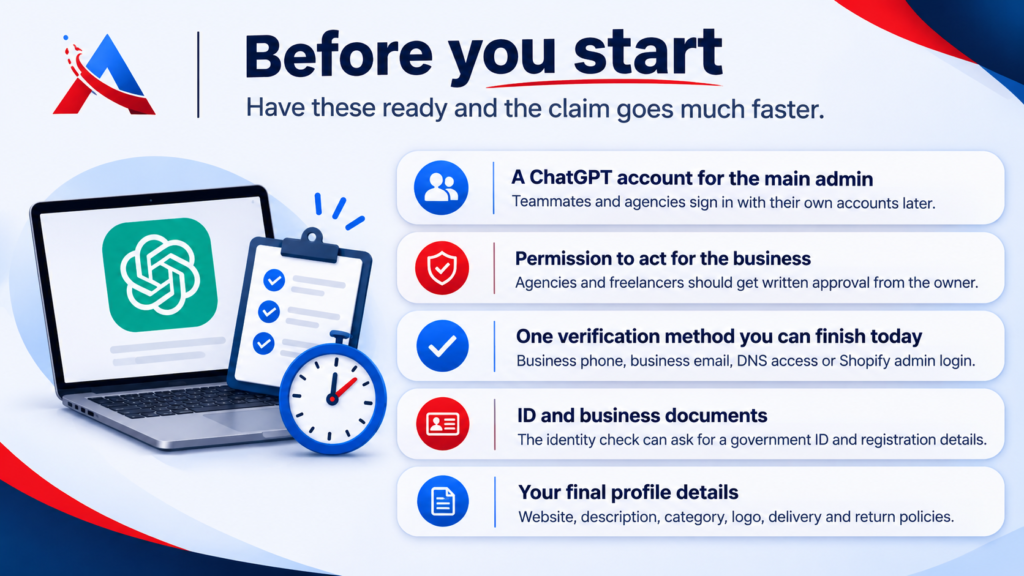
A little preparation saves a lot of back and forth. Have these ready:
- A ChatGPT account you’ll use as the main admin. Teammates and agencies sign in with their own accounts later.
- Permission to act for the business. If you’re an agency or freelancer, get written approval from the owner first.
- One verification method you can finish today. That means a business phone that can take a call or text, a business email, access to your domain’s DNS settings, or admin access to your Shopify store.
- ID and business documents. The identity check can ask for a government ID, business registration details and proof that you’re authorized to act for the business.
- Your final profile details. Website address, a short description, your category, logo, and delivery and return policies if you sell products.
One tip from experience with similar setups: your business name should read the same on your website, your documents and your listing. Mismatches are an easy way to get a request sent back.
How to Claim Your Business: Step by Step
Step 1: Open Business Hub
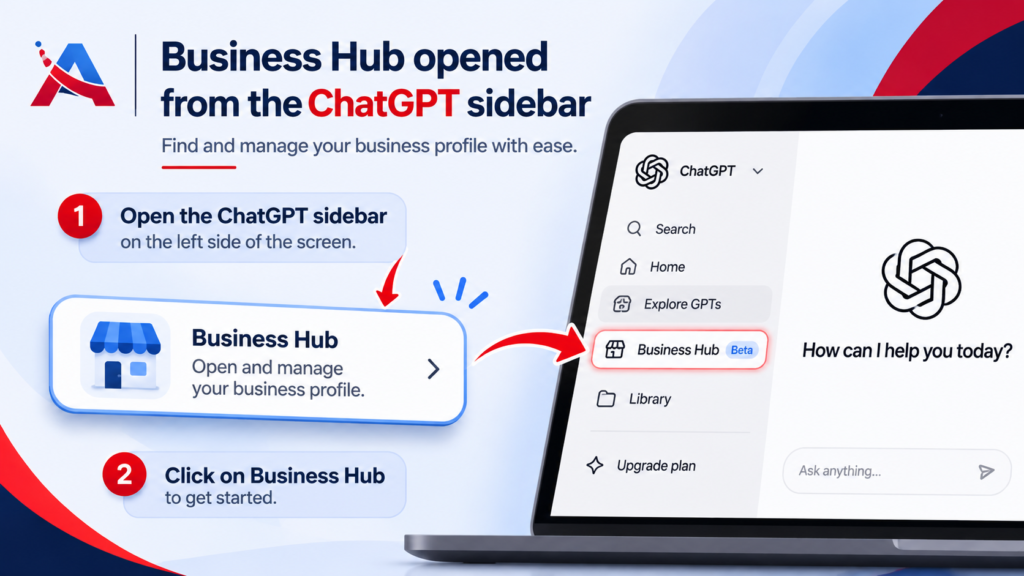
Sign in to ChatGPT and Open Business Hub from the sidebar, or go to chatgpt.com/business-hub. If OpenAI emailed you a claim invitation, use the personal link in that email and sign in with the same email address that received it. Don’t forward that invitation to anyone.
Step 2: Find your business
Search for your business name and pick the matching listing. If it’s already there, choose to claim it. If it’s missing and you run an online business, you may see an option to add it. Local businesses can’t add a new listing yet.
Take a minute to check you’re picking the right one. Similar names are common.
Step 3: Verify your claim
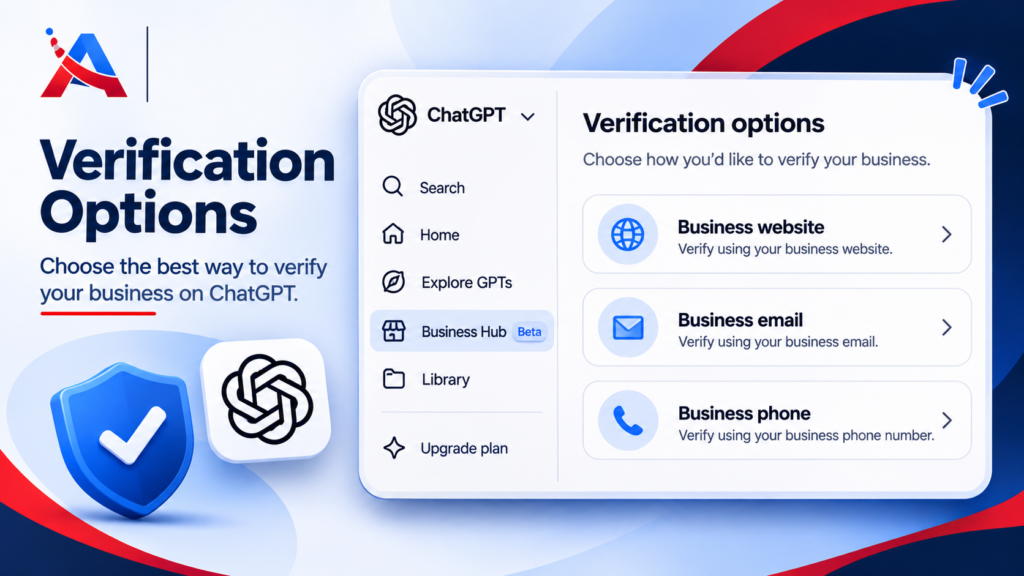
ChatGPT shows the verification methods available for your business. You may not see all four. The options are your business phone (call or text), a business email, a DNS record on your website’s domain, or your Shopify store. Pick one and follow the prompts. We compare them in the next section.
Step 4: Wait for OpenAI’s review
OpenAI reviews your claim and emails you a decision, or asks for more information. You can cancel a claim while it’s still under review. OpenAI doesn’t publish a review time. One publisher that went through the process reported near-instant approval, but don’t count on that for your business.
Step 5: Pass the Persona identity check
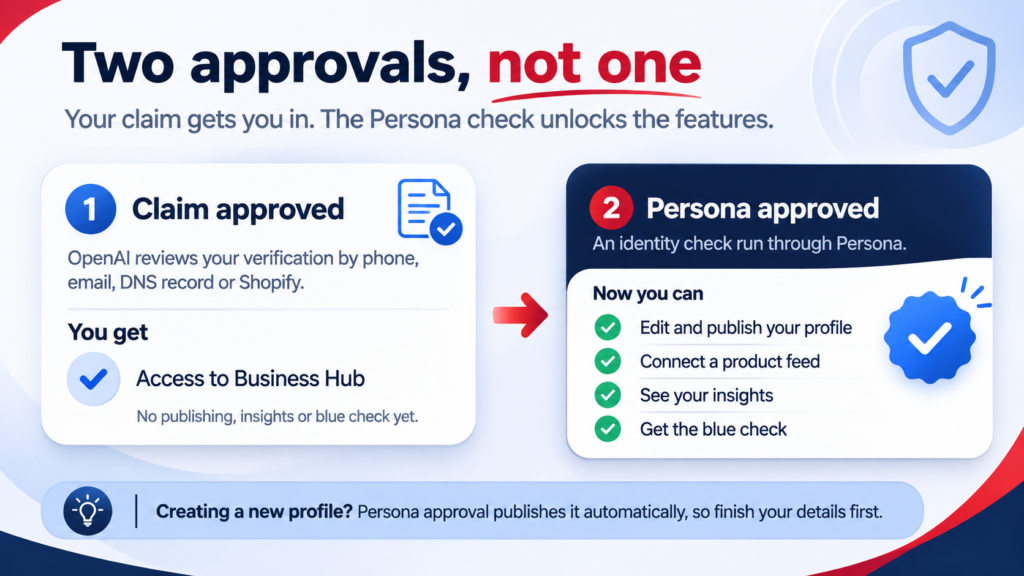
This is the step people miss. Getting your claim approved lets you into Business Hub, but you still need a second approval, an identity check run through Persona, before you can publish changes, connect a product feed, view insights or create an agent. The blue check appears only after Persona is approved.
If you verified your claim another way first, you can do Persona later. Open the Business tab, select your profile, find “Complete verification with Persona” in the overview and select Verify. Remember that submitting your details isn’t the same as being approved, so wait for the email.
Step 6: Complete your profile
Once both approvals are in, open your profile and update your website, business description, category, logo, and delivery and return policies. Changes are reviewed before they go live, so don’t expect instant updates. If you sell products, this is also where you can connect a Shopify store or upload a product feed.
Which Verification Method Should You Choose?
There’s no single best option. Choose the one you can finish quickly.
| Method | Best For | Watch Out For |
|---|---|---|
| Business phone (call or text) | Small and local businesses with a main line | You must be able to receive the call or text right then |
| Business email | Businesses with email on their own domain | Use an address tied to your business, not a personal one |
| DNS record | Businesses with their own website | You need access to the domain settings, and changes can take a while to show up |
| Shopify | Shopify stores | You need admin login for the store |
If a web developer or agency controls your domain, ask them for DNS access before you start. That’s the most common reason people stall.
What Claiming Does (and Doesn’t) Do
This part matters most, because it’s where expectations go wrong.
What it does:
- Lets you correct your business details
- Adds the blue check after Persona approval
- Unlocks insights, product feeds and team access
- Costs nothing, according to OpenAI’s setup information (advertising is optional and separate)
What it doesn’t do:
- It doesn’t change how visible your business is in ChatGPT. OpenAI says this directly.
- It doesn’t give you control over what ChatGPT recommends.
- It doesn’t stop ChatGPT from using other sources. Your website, reviews and other pages still count. AI answers inside Google work in a similar way, which we cover in our Google SGE guide.
- It doesn’t make your edits appear instantly.
Think of claiming as fixing the record, not buying a boost. That alone is worth doing, because wrong hours or an old website address cost real customers.
How to Read Your Insights
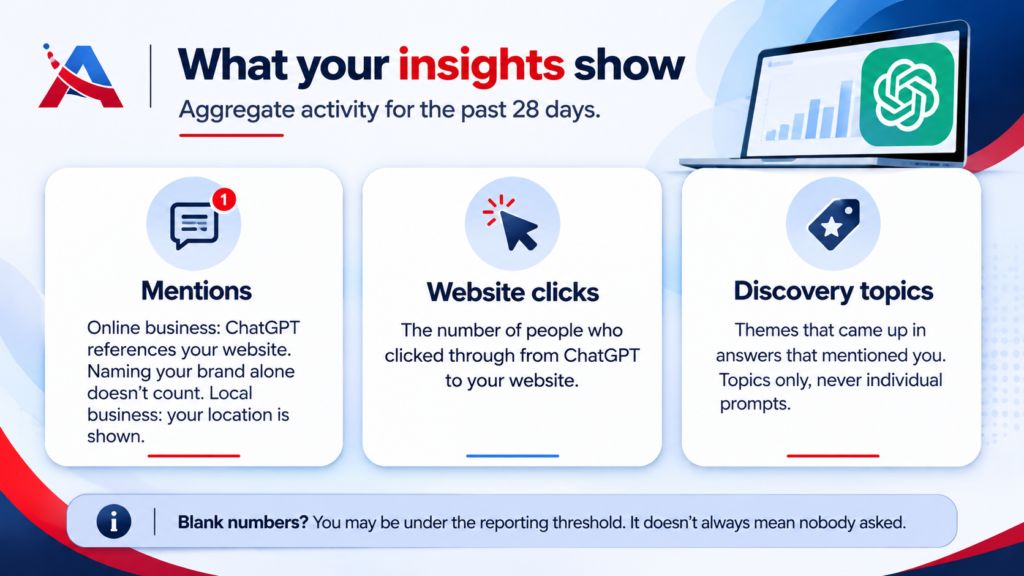
Insights show aggregate activity for the past 28 days, and you need your claim and Persona approved to see them. There are three things to look at:
- Mentions. For an online business, a mention counts when ChatGPT references your website. Naming your brand alone doesn’t count. For a local business, it counts when ChatGPT shows your location as a result.
- Website clicks. People who clicked through to your site.
- Discovery topics. Themes that came up in answers that mentioned you. These are topics, not individual prompts.
A few cautions. You never see actual conversations. A blank number can mean you’re under the reporting threshold, not that nobody asked about you. And if you also use a third-party AI tracking tool, its numbers won’t match OpenAI’s, because they count different things.
A practical use: if the topics ChatGPT links to you don’t match the services you want to be known for, that’s a hint about what your website pages should explain better. Also check OpenAI’s terms before you share insight numbers publicly.
Common Mistakes to Avoid
1. Treating the claim as the finish line. Without Persona, you can’t edit, see insights or get the blue check.
2. Submitting a new profile too early. If you create a new profile through Persona, approval publishes it automatically, and a published profile can’t be deleted. Only unpublished drafts can. Get your details right first.
3. Claiming the wrong listing. Each brand is managed separately, and claiming a main brand doesn’t claim its locations. Check the listing before you click.
4. Leaving DNS access to the last minute. Find out who holds your domain login before you begin.
5. Forwarding your claim invitation. It’s personal to you. Share access through the Access tab instead.
6. Letting policies drift. If your return or delivery policy in Business Hub differs from your website, customers will notice. Keep them matching.
7. Expecting more customers overnight. Claiming fixes facts. It doesn’t promise traffic.
Watch Out for Fake Verification Emails
Anything that involves ID checks and a blue badge attracts scammers, and this is no exception. Emails with threats such as “your ChatGPT listing will be suspended” are a classic warning sign.
A few simple habits keep you safe:
- Start from inside ChatGPT. Open Business Hub yourself instead of following a link in a message you weren’t expecting.
- Be careful with urgency and threats.
- Only submit your ID through the Persona step you opened from your own Business Hub overview.
- If you’re unsure whether an email is real, sign in and check the status in Business Hub. If nothing is pending there, ignore the email.
Claim invitations from OpenAI do exist, so if you were expecting one, that’s fine. The point is to know what you’re waiting for.
Can’t Claim Yet? What to Do Now
If your business or country isn’t supported yet, you’re not stuck. These steps are good general practice, though OpenAI hasn’t said they directly affect ChatGPT results:
- Check what ChatGPT says about you. Ask it about your business a few times and note what’s right and wrong. Screenshot it so you can compare later.
- Keep your details consistent. Your name, address, phone number, hours and website should match everywhere: your site, Google Business Profile and online directories.Our guide to local SEO for small businesses explains how to do this.
- Make your website clear. A simple page for each service, plus clear contact and policy pages, helps both people and AI tools understand what you do.
- Check back regularly. The beta is expanding, and options may appear without any announcement.
If you’d like a hand with the website and local listing side, our team does this every day through local SEO and SEO audits.
Final Thoughts
Getting your business on ChatGPT takes two approvals, some documents and a bit of patience, and it won’t guarantee more customers. But it’s free, it lets you correct the facts people see, and it gives you early data that most businesses don’t have yet. If you’re eligible, it’s worth doing now.
If you’d like help getting your website and online presence ready, you can request a free audit from AlphaTech Solution. We’ll update this guide as Business Hub changes.
FAQs
Is ChatGPT Business Hub free?
OpenAI doesn’t list a fee for claiming a business or using Business Hub, and you don’t need an advertising account. Advertising is optional and separate.
How long does verification take?
OpenAI doesn’t publish a timeline. Some people have reported very fast approvals, but plan for it to take longer, especially with the Persona check.
Can I claim my business without Shopify?
Yes. Shopify is just one way to get started. You can also verify by phone, business email or a DNS record, depending on what’s offered for your business.
Do I need a Business Agent to claim my business?
No. Claiming, publishing an agent and advertising are three separate things. You can manage your details and view insights without an agent.
Will claiming make ChatGPT recommend my business more often?
Not directly. OpenAI says claiming doesn’t change your visibility. It gives you accurate details and your own numbers.
Why can’t I find my business in Business Hub?
A few possible reasons: it may not be listed yet, local businesses can currently claim only existing US listings, or the feature may not be available in your country yet. Online businesses may be able to add a listing.
Can I delete my profile after publishing?
No. Only unpublished drafts can be deleted, so double-check everything before you publish.